Why you keep missing calendar notifications on your Mac
Mac calendar notifications get missed for four reasons: the banner disappears after a few seconds, a Focus mode holds it back, macOS hides it while you share your screen, or you dismiss it on autopilot. Three of these are settings you can change in a minute; the fourth needs a reminder that interrupts.
1. The banner disappears on its own
By default, Calendar notifications on a Mac are temporary banners: they slide in, wait a few seconds, and slide out. If you were looking at another part of the screen, it was never there.
Fix: System Settings → Notifications → Calendar, and set the alert style to Persistent (Alerts on older macOS). If your reminders come from Google Calendar in a browser, change the same setting for the browser.
2. A Focus mode is holding it back
Do Not Disturb, Work and other Focus modes silence notifications from apps they do not allow. A Focus that switches on with a schedule can silence your afternoon meetings without you noticing.
Fix: System Settings → Focus, choose each Focus you use, and add Calendar (or your browser) to its allowed apps.
3. You are sharing your screen
While you mirror or share your display - in a call, or presenting - macOS hides notifications, so a reminder for your next meeting never appears during the current one.
Fix: System Settings → Notifications, and allow notifications when mirroring or sharing the display. Be aware that the other people on the call will see them too.
4. You dismissed it without reading it
This one no setting fixes. When you are concentrating, a notification in the corner of the screen gets swiped away by reflex, and the meeting is forgotten a second later. The reminder fired; it just never reached you.
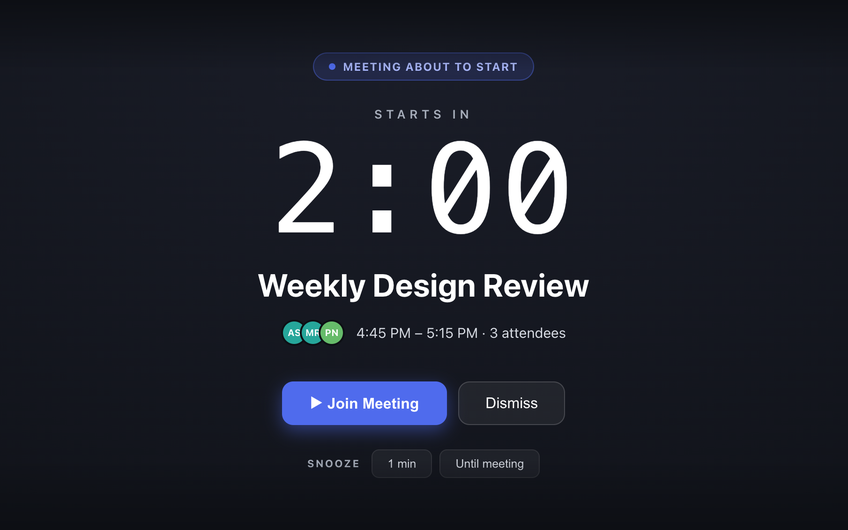
That is the gap Just In Time fills. It is a Mac menubar app that reads your Google Calendar and, 2 minutes before each meeting, covers your whole screen with a countdown and a Join Meeting button. It is a window, not a notification, so it does not depend on notification settings, and it appears above full-screen apps on every Space.
Common questions
Why do I keep missing calendar notifications on my Mac?
Usually for one of four reasons: the notification style is set to disappear after a few seconds, a Focus mode is holding it back, macOS hides notifications while you share your screen, or you dismissed it on autopilot while concentrating. The first three are settings; the fourth needs a reminder that interrupts.
How do I make Calendar notifications stay on screen on a Mac?
Open System Settings, then Notifications, then Calendar, and set the alert style to Persistent (called Alerts on older versions of macOS). The notification then stays until you act on it.
Why don’t I get notifications while sharing my screen?
macOS hides notifications while you mirror or share your display. You can change this in System Settings, Notifications, with the option to allow notifications when mirroring or sharing the display.
Do Focus modes stop meeting reminders?
They can. A Focus mode silences notifications from apps it does not allow. Add Calendar - or the app that sends your reminders - to the Focus mode’s allowed apps.